|
Once a Purchase Order has been Issued and printed (but not yet
closed), it may not be immediately obvious how to reprint a Purchase
Order
in BusinessVision. Here are some instructions on how to do this.
At first glance it appears that you could simply click on the
printer icon found along the toolbar at the top of the Purchase
Order screen. Nope!
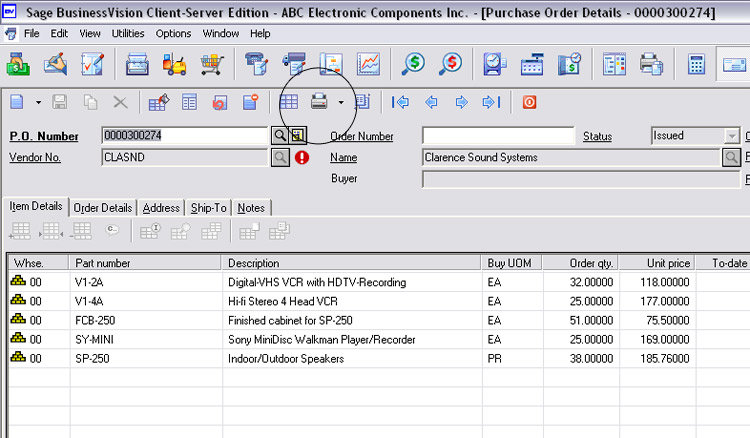
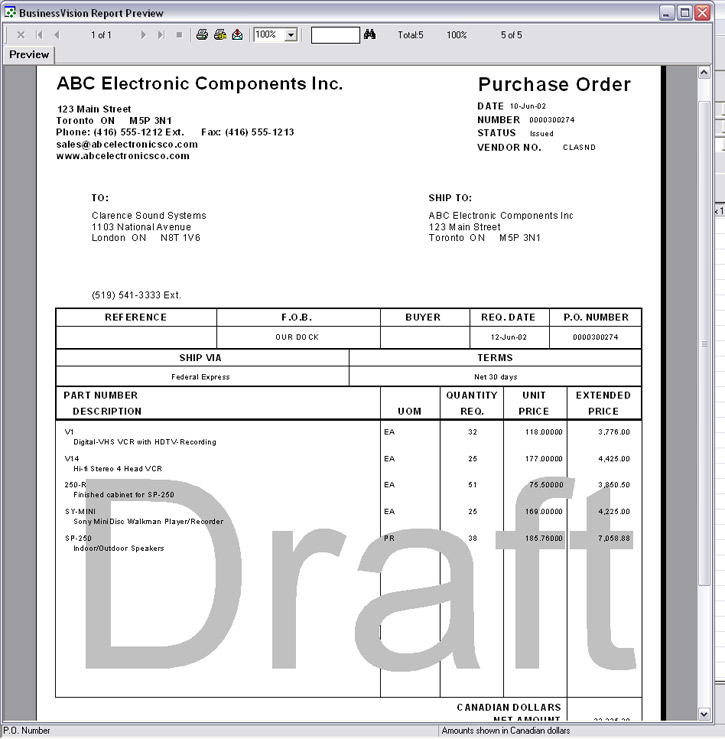
This in fact prints an entirely different form, called "Purchase
Details". And it has the word "Draft" printed across the entire
form, which is clearly not suitable for sending off to a supplier!
To reprint an open Purchase Order, you must proceed in an
entirely different manner.
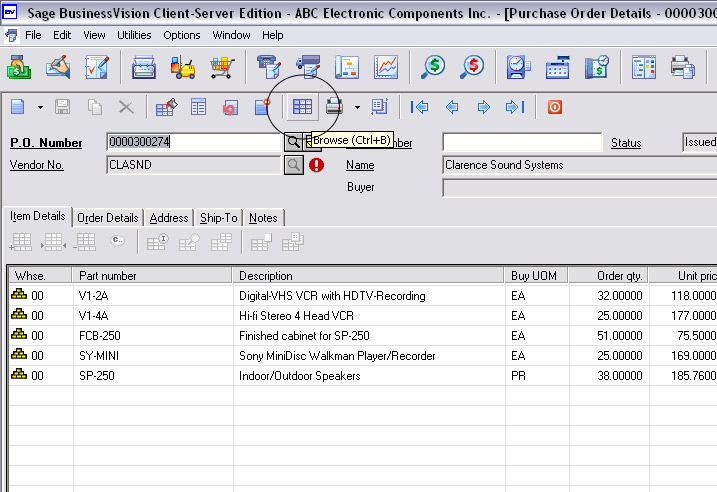
In the Purchase Order module, open the Full-Screen Browse:
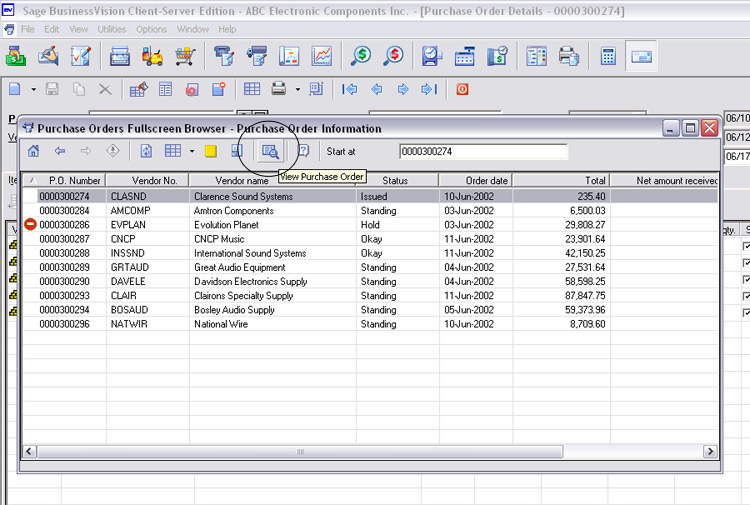
With the Full-Screen Browse open click on the PO you wish to
reprint, but do not double-click it to open it!
Instead, with that PO highlighted, click on the "View Purchase
Order" button.
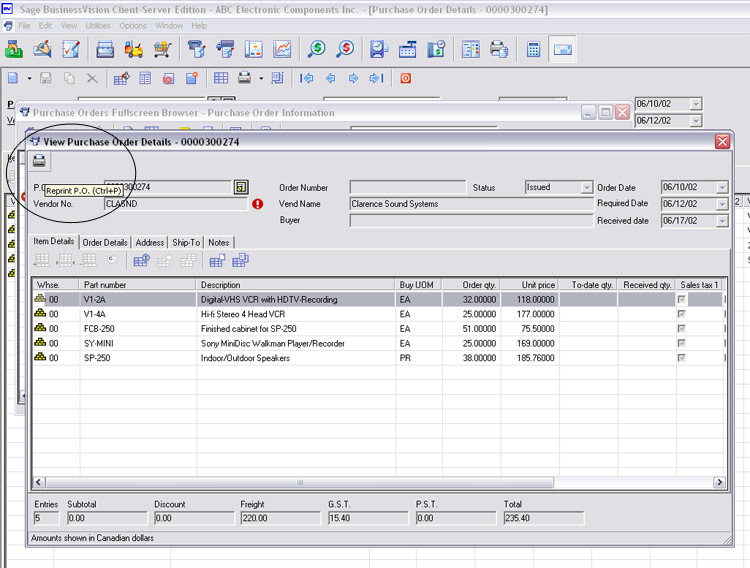
You will see a screen with the Purchase Order displayed (shown
below).
Click the Printer icon in the upper left corner of this screen,
"Reprint P.O." and you will see your Purchase Order reprinted on the
usual Purchase Order form that you use.
Yes, this quite a roundabout way to go about the simple task of
reprinting a P.O.! If you agree, let Sage Software know.
| 


